Introduction
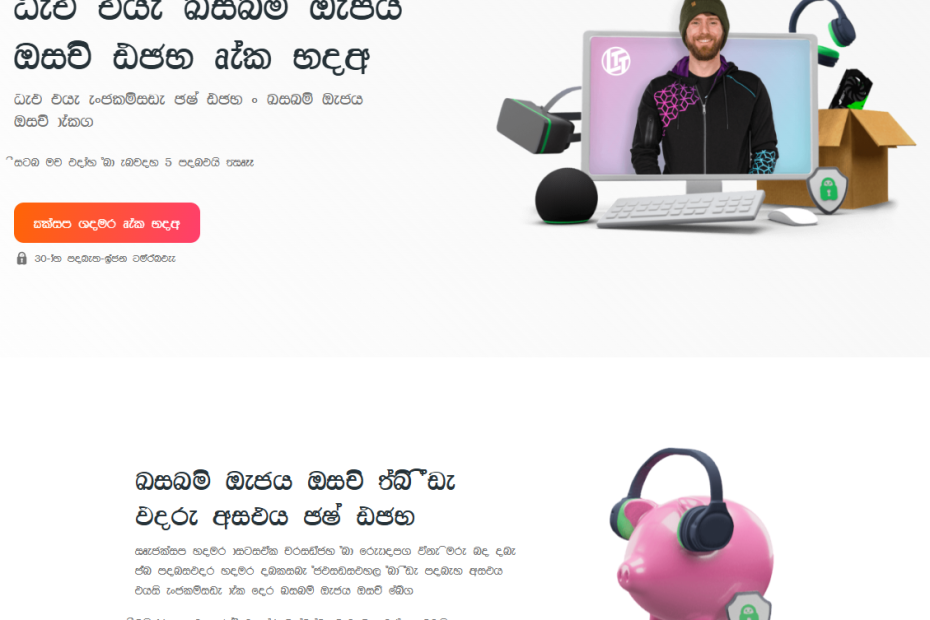
While using Chrome or Edge as my browser, I encountered a strange issue on certain websites: some text was rendered in my local language, Sinhala. This was peculiar because the websites were actually in English, as shown in Figure 02. One example of such a website where I encountered this issue is https://docs.k3s.io.
The following Figure 01 shows a screenshot of such a website.
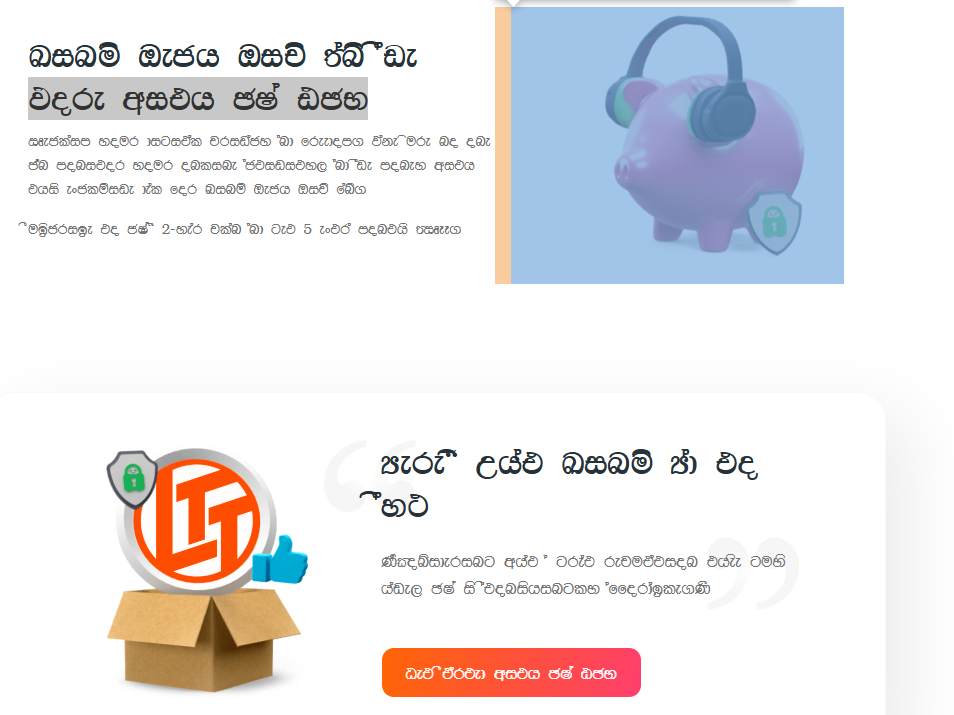
Interestingly, the words displayed in Sinhala were not meaningful; they weren’t translations but appeared as gibberish. Even more puzzling, this behavior was not observed in browsers like Mozilla Firefox, where the text rendered correctly.

Identifying the Cause
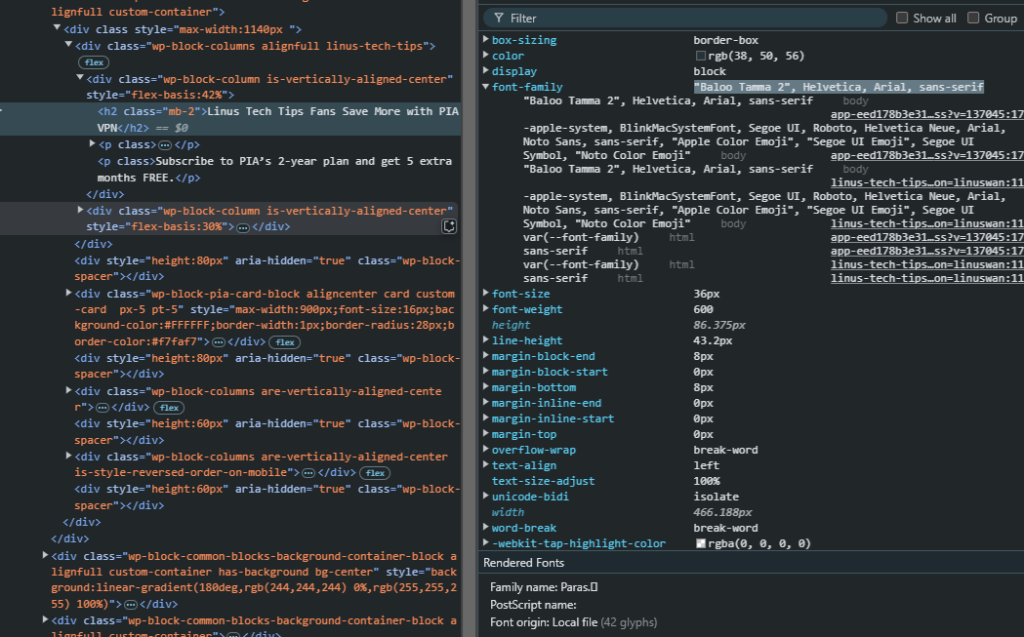
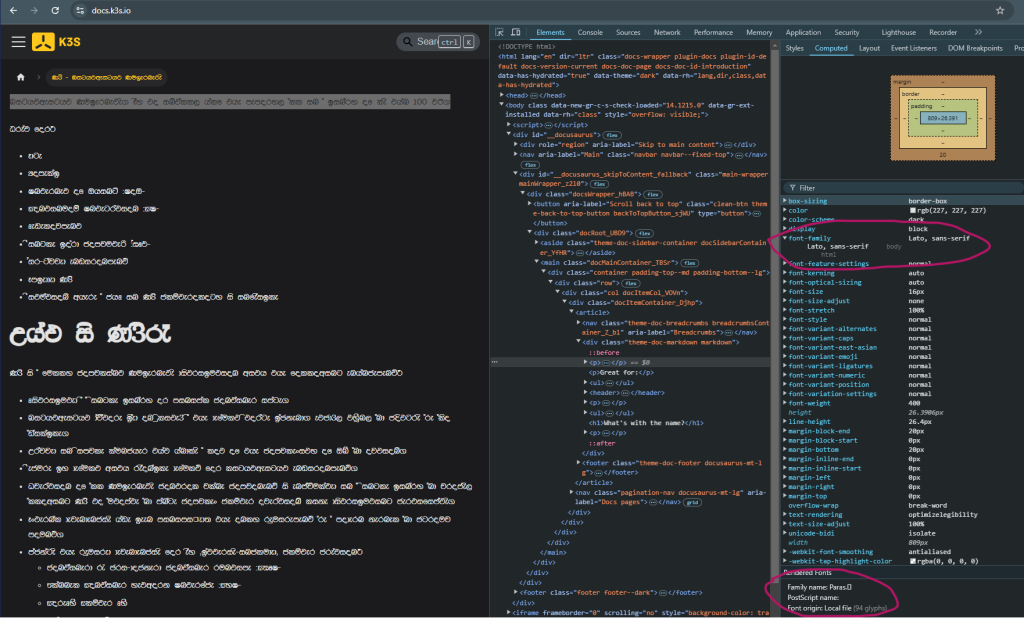
The root of the issue seems to lie in the font rendering process. In Chrome’s Inspect Mode, you can see the font being used to render the text under Inspect > Elements > Computed > Font-family. As shown in Figure 03, the font in question was “Paras<something….>”
We can observe this with the Chrome’s Inspect window as shown in Figure 03.
Here’s what I believe is happening:
- Chrome attempts to use the first font in the website’s font stack. In this case, the font stack included “Baloo Tamma 2,” “Helvetica,” and other fallback fonts.
- If the required font isn’t installed or cannot render the text, Chrome defaults to a system font. In my case, it defaulted to the “Paras” font, which is a Sinhala font on my system.
- Since “Paras” isn’t designed for English text, it caused the gibberish rendering.
Solutions
If you’re facing a similar issue, here are a couple of solutions:
- Uninstall or Disable the Problematic Font
- Locate the “Paras” font (or any other problematic font) on your system and uninstall or disable it. For Windows; Fonts are stored in C:\Windows\Fonts. Make sure to back up your fonts before deleting anything.
- In my case, I removed all fonts starting with “Paras” as they were not essential to my use cases.
2. Use a Non-Chromium-Based Browser.
Alternatively, you can switch to a non-Chromium-based browser like Mozilla Firefox, which doesn’t exhibit this behavior.
3. Use a Chrome extension like Stylebot. Found this useful YouTube video by ‘Awesome Tutes’.
4. Download the missing fonts. 😀
That’s it for this article! If you encounter this issue, follow the above steps/workarounds to fix it.
Happy browsing and wishing happy holidays! 🎉